Microsoft first announced Copilot in early 2023, but for most regular users it didn’t become available until a year later. Between delays, rumors of buggy beta builds, and unclear release plans, expectations were mixed. Now Copilot is officially live across Microsoft 365 — and after hands-on testing, here’s what the real experience looks like.
What Copilot Costs — and Where It Works
Copilot requires a Microsoft account and a paid subscription.
Microsoft Copilot has different pricing tiers depending on the product. For businesses, Microsoft 365 Copilot costs $30 per user per month with an annual commitment, and requires a separate Microsoft 365 license.
Microsoft 365 Personal: Includes Copilot for one user and starts at $9.99 per month (first month at $19.99).
Free version: A free, web-based version of Copilot is available for general questions and research.
Today, Copilot is available in:
- Word
- Excel
- Outlook
- Teams
- PowerPoint
- OneNote
- Loop
- Whiteboard
If you already rely heavily on Microsoft’s ecosystem, the value grows quickly because Copilot is essentially ChatGPT-5 built into every app you use daily.
How Copilot Works Inside Microsoft 365
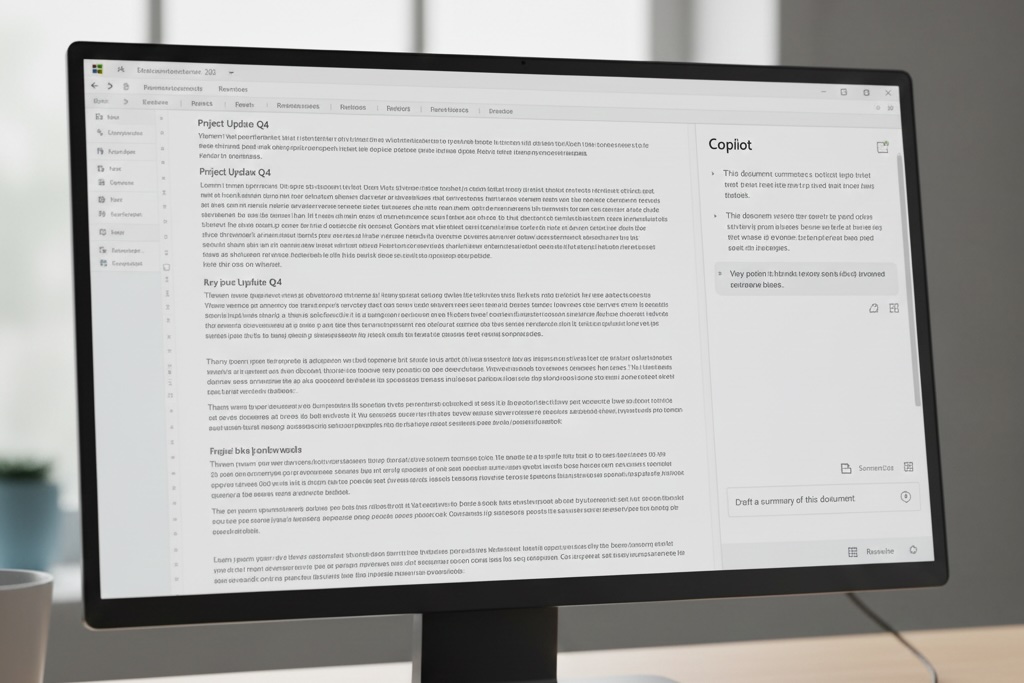
In most Microsoft apps, Copilot appears as a sidebar. You type a prompt, and it generates text, summaries, lists, or formatting changes directly into your document, workbook, note or email.
Word
In Word, Copilot can write paragraphs, summaries and drafts, shorten or expand content, rewrite text, and generate quick outlines. It feels very similar to using ChatGPT inside Word and is mainly useful for text-heavy tasks.
OneNote
In OneNote, Copilot helps brainstorm ideas, create lists, and reorganize notes. It doesn’t add complex functionality, but it’s handy for everyday planning and capturing ideas.
PowerPoint
In PowerPoint, you can ask Copilot to generate entire presentations, build slide outlines, and create starter layouts. The structure is usually decent, but the content is shallow unless you give very specific instructions. Expect to edit slides heavily before presenting.
Where Copilot Actually Feels Different: Excel

Excel is where Copilot feels the most different from other AI tools—and where its limitations become the most obvious. It can generate formulas, highlight values, filter tables, create pivot tables, build charts, and analyze trends, but only under specific conditions.
Two important restrictions:
- Your data must be stored in OneDrive.
- Your data must be formatted as a proper Excel table.
Real Strength: Formula Generation
If you describe what you want in plain language, Copilot can build correct formulas, even for moderately complex logic. This can save a lot of time compared with searching the web for the right syntax.
Real Weakness: Anything Advanced
Copilot struggles when you ask it to clean messy data, split columns using delimiters, perform multi-step transformations, or handle contextual logic. It also has trouble with larger datasets. Files with hundreds of thousands of rows often fail with an error or simply time out.
Performance and Limitations

Speed
Copilot is noticeably slower than ChatGPT or Bing Chat. Tasks that might take around five seconds in a browser-based AI often take 20–30 seconds in Copilot. When you’re waiting for a pivot table or chart to appear, that delay feels long.
Cloud Dependence
All Copilot processing happens in Microsoft’s cloud (Azure), not locally. That means no offline mode, mandatory OneDrive storage for files, and inconsistent results if your internet connection is unstable.
Occasional Wrong Actions
Because Copilot can directly edit your files, sometimes it performs actions you didn’t intend—adding columns, changing formatting, or generating the wrong kind of analysis. Undoing these changes is possible but frustrating.
Not Yet a Tool for Power Analysts
If you work with large datasets or do serious analytics, Excel Copilot feels very limited. It handles basic formulas and simple exploratory analysis but falls short on real data-wrangling tasks.
Pros and Cons
Pros
- Deep integration across Microsoft 365
- Excellent at summarizing text, emails, and notes
- Helpful for non-technical or casual users
- Formula generation in Excel is genuinely useful
- Reduces time spent on routine email responses
- Good starting point for presentations and documents
Cons
- Slow response times compared with web-based AI tools
- Requires OneDrive and an internet connection
- Limited with large datasets and advanced data cleaning
- Sometimes misinterprets prompts and edits the wrong thing
- Output quality varies without clear, detailed instructions
Verdict: A Strong Start, But Not a Power Tool Yet
Right now, Copilot feels like a solid 7 out of 10 — promising and genuinely helpful in the right contexts, but far from perfect. It shines for everyday Microsoft 365 users who write emails, documents and notes all day. It’s less compelling for power users and data analysts who expect advanced data manipulation and high performance.
Best for: casual Excel users, office workers who live in Outlook and Word, and anyone who wants AI built directly into the tools they already use.
Not great for: data analysts, heavy Excel users, or anyone working with large, complex datasets.
Microsoft will almost certainly continue to improve Copilot. Faster processing, better data handling, and more advanced Excel features are likely in the next one to two years. For now, think of Copilot as a helpful productivity assistant rather than a full replacement for strong Excel skills or standalone AI tools.
Review based on the original video by Alex The Analyst — source:
YouTube.